
Leafy Corner · Orders · Guide
Leafy Corner How To Complete Orders — Phone Orders Step by Step
Leafy Corner how to complete orders: accept the phone order, grow and mark the plants not for sale, then select the highlighted set and submit.
By the New Game Wiki team · Updated 2026-10-04
On this page (9)
- How Phone Orders Work
- Completing an Order Step by Step
- Why an Order Refuses to Submit
- Order Tips and the One-Order Limit
- How do you complete a phone order in Leafy Corner?
- How do you mark a plant as not for sale in Leafy Corner?
- Why will my Leafy Corner order not submit even with the right plants?
- How many open orders can you have in Leafy Corner?
- When do orders unlock in Leafy Corner?
The Leafy Corner how to complete orders answer is that the order only submits when the full set qualifies, so the work is in preparing the plants rather than in the submission itself. Accept the phone call, check the order panel for how many you need, grow or gather that many eligible plants, mark them not for sale so nobody buys them, and then select the highlighted set in the order manager. This page walks through the full flow, the checks to run when the confirmation will not appear, and the one-order limit that catches most new players.
Steps below come from a credited Steam answer, a credited Leafy Corner guide, and a hands-on walkthrough video, with the patch detail taken from the official update notes.
How Phone Orders Work
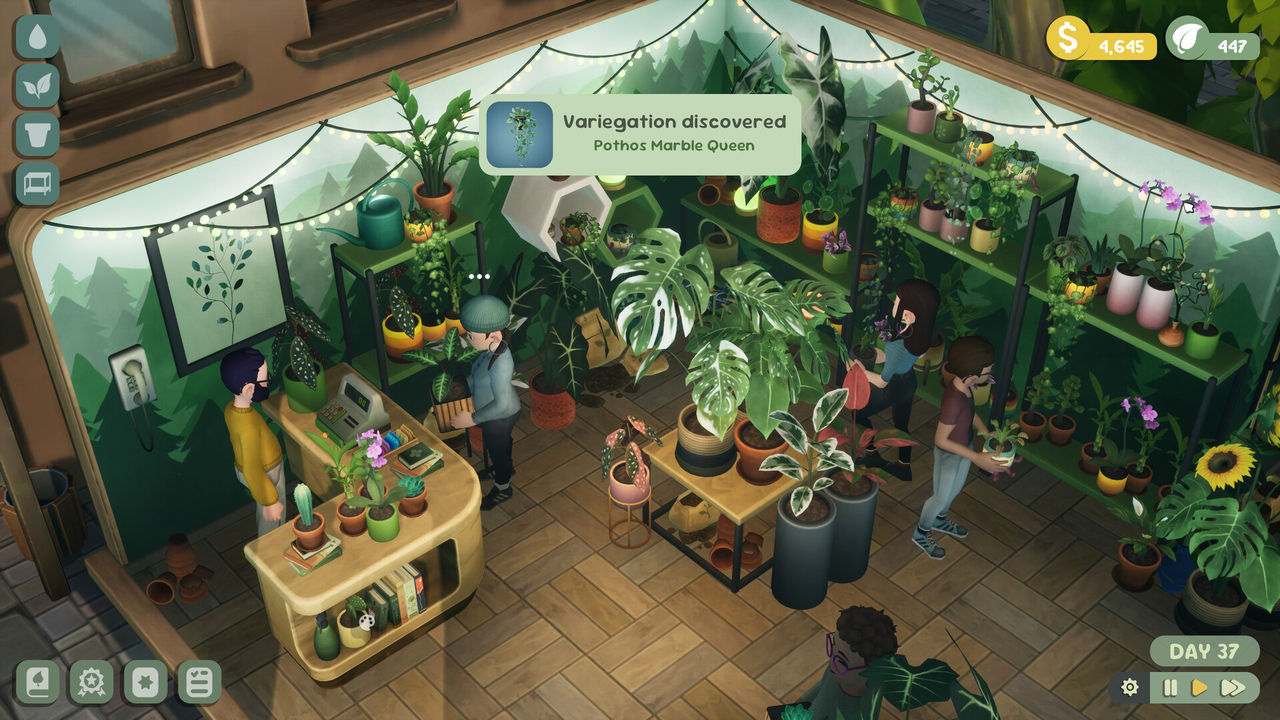
Orders arrive by phone rather than over the counter, and the walkthrough video describes the moment clearly: the phone behind your character rings, and a customer on the line requests a certain number of a specific type of plant. You do not have to do anything special at that moment, and the video notes you are not forced to answer at all, since the ringing simply stops and the customer calls again later. Once you accept, the order panel appears and the job becomes a stocking problem rather than a conversation.
The credited Steam answer explains what that panel shows. The graphic in the top right corner gives you the order information plus a count of the required plants you already have in stock, written as a fraction such as 0/5 or 3/5. That fraction is the single most useful number on screen, because it tells you immediately whether you can complete the order now or need to plant more. The credited guide adds the qualifying rule that matters most: an order submits only when the full set qualifies, so partial credit is never enough.
| Order panel element | What it tells you | What to do with it |
|---|---|---|
| Order description | The plant type and traits requested | Match stock to the request |
| Count fraction | How many you have versus how many you need | Plant more if the first number is low |
| Green checkmark | Every required plant is ready | Open the order manager |
| Order management panel | The set you select before submitting | Click each highlighted plant |
What to do the moment an order arrives:
- Read the traits, not just the plant name, because the set must qualify fully.
- Check the count fraction before you start planting anything.
- Reserve existing stock with the not for sale toggle while you grow the rest.
Completing an Order Step by Step
The credited Steam answer lays out the exact sequence. When you accept the order, the top-right graphic gives you the order information plus the count of required plants in stock. If you have zero, there is plenty of time to pot the required plants, mark them as not for sale, and once they mature the graphic gives you a green checkmark. At that point you click back on the order management panel at the bottom of the screen and choose complete order, the correct plants are highlighted, and you click each one and submit. The walkthrough video describes the same flow from the shop floor: click on all the plants in the request and select accept.
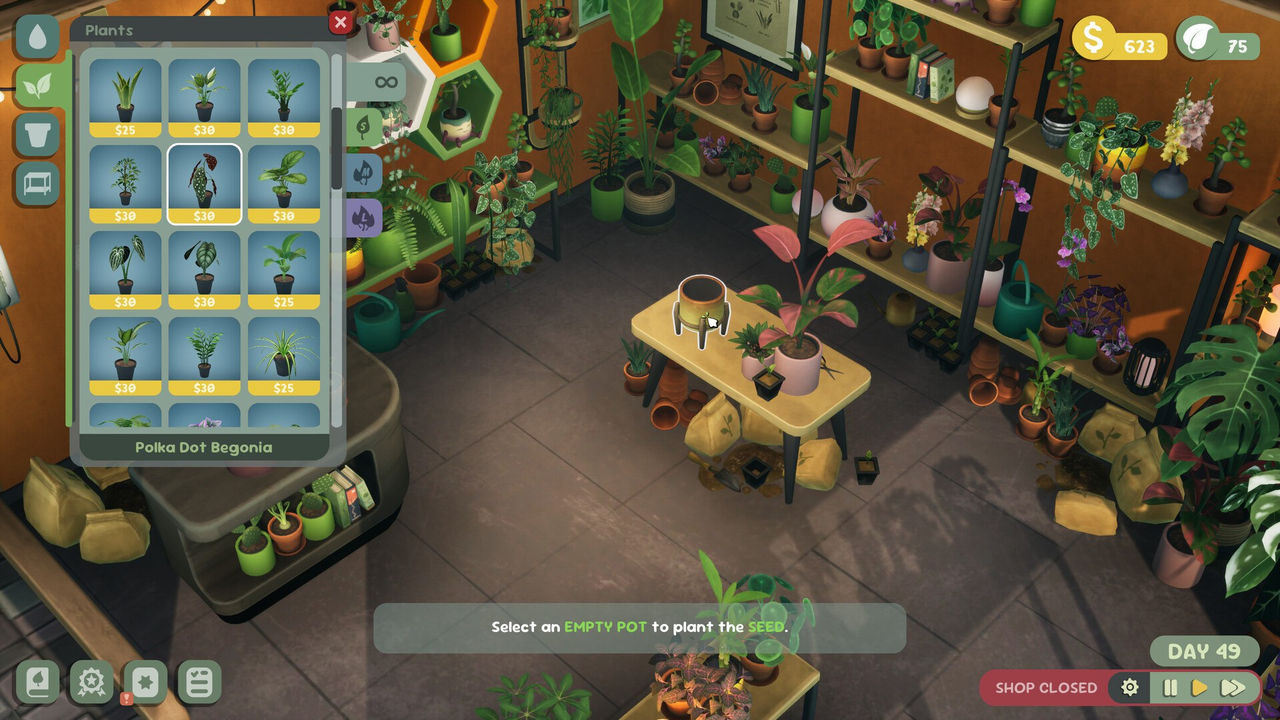
The marking step is the one players skip and regret. The video's host describes setting aside six plants for an order, then finding the count said five out of six because someone in the shop bought one of them, and afterwards labelling every reserved plant as not for sale. The credited Steam answer gives the keyboard shortcut as P, and a PlayStation trophy guide describes the console equivalent as interacting with a plant, pressing Triangle, then R1.
| Step | Action | Where |
|---|---|---|
| 1 | Accept the phone order | Shop counter |
| 2 | Read the requirement and count | Top-right order graphic |
| 3 | Grow or gather the plants | Pots and shelves |
| 4 | Mark them not for sale | Plant interaction, shortcut P |
| 5 | Wait for the green checkmark | Top-right order graphic |
| 6 | Select each highlighted plant and submit | Order management panel |
The reliable order routine:
- Mark reserved plants not for sale the moment you set them aside.
- Keep growing spaces occupied so a new order never waits on empty pots.
- Select every highlighted plant before submitting, since a missed one blocks the set.
Why an Order Refuses to Submit
When the confirmation does not appear, the credited guide gives a specific troubleshooting order: check quantity first, then growth stage, then traits, and finally whether a reserved plant was sold. That order is deliberate, because quantity is the most common miss, a plant that is still growing looks identical to a ready one at a glance, and a trait mismatch is easy to overlook when the plant looks right. The last check is the one the video host learned the hard way, since a walk-in customer buying a reserved plant silently drops the set below the required number.
There is also a documented stuck-order case. In the credited Steam thread, a player reported planting new pet-friendly plants and marking them not for sale, fully grown, but still being unable to interact with the management tab except to cancel the order. Cancelling and taking another order let them complete it, and they never learned why the first one failed. That is a single report, so treat it as to confirm, but the practical takeaway is clear: if an order will not accept input despite meeting the requirements, cancel it and take a new one rather than losing time.
| Symptom | Likely cause | Fix |
|---|---|---|
| No green checkmark | A required plant is still growing | Wait or plant more |
| Count short by one | A reserved plant was sold | Mark the rest not for sale and replace it |
| Traits not matching | The plant does not qualify | Swap in a plant with the right trait |
| Panel will not respond | Reported stuck order | Cancel and accept a new order |
Checks to run before cancelling anything:
- Recount the fraction rather than trusting your memory of how many you planted.
- Confirm each plant's growth stage by clicking it, not by looking at the shelf.
- Verify the trait, since pet friendly and low light are separate conditions.
Order Tips and the One-Order Limit
The single most useful tip is the limit. A credited TikTok tip states that once you unlock orders you can only hold a maximum of one open order, so you must either abandon or complete the current one before a new order becomes available. That changes strategy: an order you cannot fill quickly is actively blocking new business, so a cheap order you can finish now is often better than a valuable one that stalls for days.
The credited guide's starter shortlist shows how to think about matching. For a medium, pet friendly, low light request, it names Boston Fern, Maranta and Spider Plant as examples that satisfy those conditions. That is the pattern to copy: break the request into traits, keep a spread of plants that cover different traits, and reserve a few of each so an order never forces an emergency planting. Patch 1.0.3 also delayed Trailing-trait orders until reputation level 4, which means the awkward hanging plant requests will not appear until your shop is well established.
A closing checklist for order efficiency:
- Keep one plant of each common trait permanently in stock.
- Finish small orders fast rather than holding the single slot for a big one.
- Reserve with not for sale, then release the plant once the order is submitted.
- Check the plants page for trait coverage and the shop-expansion page for the space you need to stock larger orders.
In short: accept the call, match every trait and quantity, mark the set not for sale, wait for the checkmark, then select each highlighted plant and submit before the single order slot blocks your next sale.
FAQ
How do you complete a phone order in Leafy Corner?
Accept the order when the phone rings, then check the order graphic in the top right corner for the plant requirements and your current count. Grow or gather the required plants, mark them not for sale so a walk-in customer cannot buy them, wait for the green checkmark, then open the order management panel at the bottom of the screen, click each highlighted plant, and submit.
How do you mark a plant as not for sale in Leafy Corner?
The credited Steam answer gives the shortcut as P while selecting the plant, and a PlayStation trophy guide describes the equivalent as interacting with a plant, pressing Triangle, then R1. Marking a plant not for sale keeps it in the shop so it can grow to a higher value and stay reserved for an order.
Why will my Leafy Corner order not submit even with the right plants?
The credited guide lists the checks in order: quantity first, then growth stage, then traits, and finally whether a reserved plant was sold by a walk-in customer. One Steam user also reported that fully grown pet-friendly plants would not let them interact with the management tab, and that cancelling and taking a new order fixed it, so a stuck order is worth abandoning rather than fighting.
How many open orders can you have in Leafy Corner?
One at a time. A credited TikTok tip says that after you unlock orders you can only hold a maximum of one open order, so you must either abandon or complete the current one before a new order becomes available.
When do orders unlock in Leafy Corner?
Orders appear once your shop has grown, and a credited shop-expansion guide places customer orders opening around the same reputation band as the first expansion, which that guide puts at reputation level 3. Patch 1.0.3 also delays Trailing-trait orders until reputation level 4.
References
- Customer order :: Leafy Corner General Discussions (Steam Community)
- Leafy Corner Guide | Plants, Orders, and Shop Progression (leafycorner.org)
- Selling Plants We Grow To Needy Customers ~ Leafy Corner (YouTube)
- Leafy Corner on Steam
Facts on this page are compiled from the references above. Items marked "to confirm" are single-source and not yet verified.